Display-Selector
Switch display & audio
with one keypress.
A lightweight Windows 11 system-tray utility that saves your display layout and audio device as named Profiles.
Free, and self-contained with per-user installer. No admin rights or .NET runtime needed.
Explore the open-source code, create an issue, download releases on GitHub.
Launchers switch to a Profile and start a game
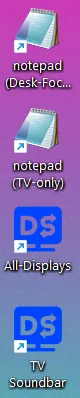
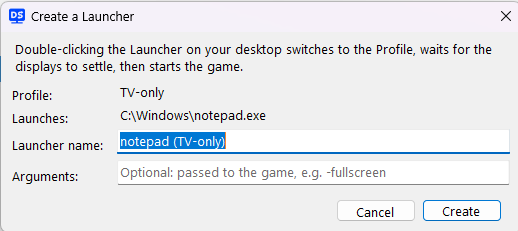
A Launcher is a desktop icon that switches to a Profile (e.g. monitor → TV), waits for the displays and audio to settle, then starts your game or program.

Switching Grace Period
The TV in a profile doesn't have to be on for switching via Launcher. On Launcher activation, Display-Selector waits ~10 seconds for the Profile, moves the picture and sound onto it, then starts the configured application.
Games: Steam and Epic
Point a Launcher at any .exe, or at the desktop shortcut Steam or Epic created for a game. Pass game options like -fullscreen as Arguments.
Profile Shortcuts
Just want to switch? A (non-Launcher) Profile Shortcut only switches display and audio. Pin it to Start or the taskbar, or add it as a Steam Big Picture tile.
Command Line
Advanced users can use CLI commands like DisplaySelector.exe --profile … --launch … . This works with URIs or shortcuts you make yourself.
Create one from the Profile Manager or any Profile’s menu. See how in the README
Manage Profiles for Switching Displays and Audio
Stays out of your way but changes settings with one keypress.
Launchers & Profile Shortcuts
Desktop icons that switch to a Profile in one double-click. A Launcher then waits for the displays to settle and starts your game or program, including Steam and Epic shortcuts.
Profile Manager
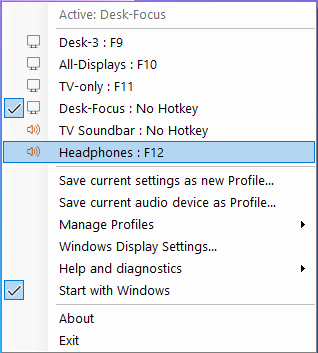
Every Profile and command in one window that can stay open while you work: switch, rename, set hotkeys and audio devices, reorder, and create Launchers.
Named Profiles
Save display config, such as which is primary, and their position, resolution, orientation and refresh rate, plus your audio device, under a name you choose.
Audio-only Profiles
Flip between headphones and speakers without touching your displays. Apps and System Sounds both move to the new device.
Global Hotkeys
Switch from the desktop or inside a game. The first four Profiles are bound to F9–F12 automatically; rebind any hotkey with clash checks.
Always Knows What's Active
An active indicator check mark follows changes made anywhere, whether changed in Windows Settings, Win+P, the volume flyout, or unplugging a cable. It reacts to Windows events and never polls.
Focus Mode
Switching to a Profile with fewer monitors drops the unselected monitor(s) to low power. For example, go from three monitors to one for focused work or gaming.
Built-in Diagnostics
Display and audio testers, per-Profile diagnostics, and pre-filled GitHub bug reports for when something isn't right.
Quiet, Portable and Private
Lives in the tray and does nothing while idle. No admin rights, no .NET runtime, nothing sent over the network. All data stays under %LOCALAPPDATA%\DisplaySelector.
Setup in Three Steps
From install to switching display and audio Profiles in about a minute.
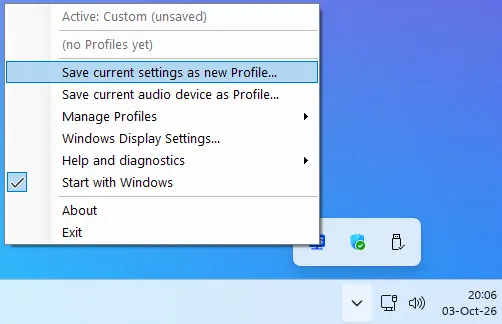
Find the tray icon
On install, since the app is unsigned, if Windows SmartScreen warns, choose More info → Run anyway. After install, Display-Selector starts in the system tray; click the arrow to show the Display-Selector icon and click it to access the menu. Detailed instructions in the README on GitHub.

Save current setup as a Profile
Arrange your displays and audio device for a Profile, then choose Save current settings as new Profile… from the menu, name the Profile, and click OK. To save a switch for only audio, choose Save current audio device as Profile… instead.
Switch with hotkey or click
Press a Profile’s hotkey (the first four bind to F9–F12) or click the Profile in the menu. A Windows notification confirms the switch and a tone plays on the new audio device. Prefer a different hotkey? Choose Manage Profiles ▸ (Profile) ▸ Set hotkey…. Want a desktop shortcut? Create a Launcher or Profile Shortcut.
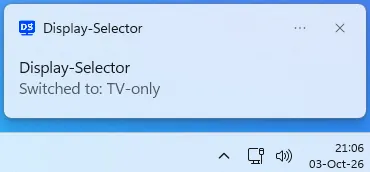
Headphones By Keypress
Save your headphones with Save current audio device as Profile… and give it a hotkey. Then flip between headphones and speakers with a single keypress or click while your displays stay exactly as they are.
Not sure which device is which? Play tone sounds a test tone on the selected device without changing the Windows default, and Help and diagnostics ▸ Run audio test… can assign a device to one Profile or all of them.
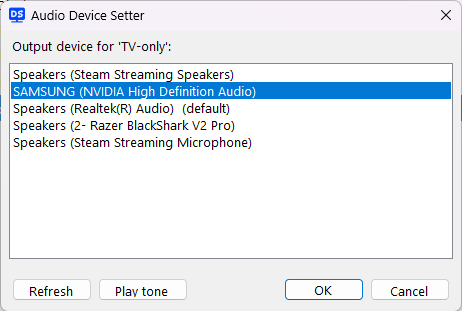
All Profiles in One Window
The Profile Manager puts every Profile and command side by side: switch, rename, set hotkeys and audio devices, reorder, create Launchers and Profile Shortcuts, and check diagnostics. Click Manage Profiles in the tray menu to open it.
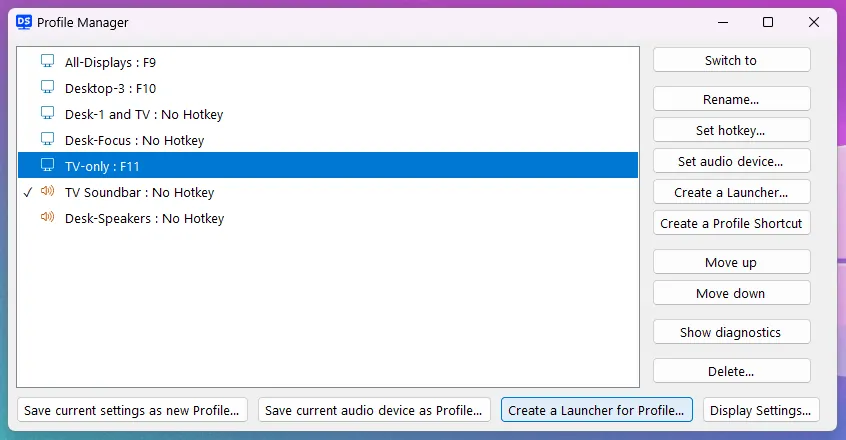
Every menu item and dialog is covered in the README reference.
Frequently Asked Questions
Is Display-Selector free?
Yes. Display-Selector is completely free and open-source, licensed under Apache 2.0. There are no ads, trials, or paid tiers.
Does it require administrator rights or the .NET runtime?
No. It installs per-user with no administrator rights, needs no .NET runtime, and runs no background services except the system tray app itself. All app data stays local under %LOCALAPPDATA%\DisplaySelector, and the app sends nothing over the network on its own (there is a built-in bug reporting feature you control).
Which version of Windows do I need?
Display-Selector is built and tested on Windows 11 (as of October 2026). Older and other Windows versions are untested.
Why does Windows SmartScreen warn me when I run the installer?
The app is unsigned, so Windows SmartScreen shows a warning. Click More info, then Run anyway to launch it.
How do I switch between Profiles?
Press a Profile's global hotkey, click a Profile in the system-tray menu or Profile Manager window, or double-click a Launcher or Profile Shortcut. The first four Profiles get F9–F12 automatically; any hotkey can be rebound and hotkeys work even inside fullscreen games.
Can I switch to headphones without changing my display layout?
Yes. An audio-only Profile switches just the sound device, such as headphones or soundbar, with one hotkey or click, leaving displays alone. Both app audio and Windows System Sounds move to the new device.
Can Display-Selector launch Steam or Epic games?
Yes. A Launcher accepts any .exe, or the desktop shortcut that Steam or Epic created for a game. You can also add a Launcher to Steam as a non-Steam game, or call Display-Selector from the command line.
Does my TV have to be on before I launch a game?
No. Double-click the Launcher, then turn the TV on within about 10 seconds. Display-Selector waits for the TV to appear, then switches the picture and sound, and finally starts the game. If the TV doesn't come on in time, the game starts anyway and a Windows notification identifies the missing display.
Does switching Profiles change my volume?
No. A Profile saves the audio output device, not its volume level, so switching changes the device and never touches the volume.
Display-Selector is free and open-source, licensed under Apache 2.0.

Found a bug? In the app, Help and diagnostics ▸ Submit bug report… opens a pre-filled GitHub issue. Browse open issues
Built with Claude Code 🤖 — your support helps cover the API credits.
✨ Support Display-Selector